Why This Matters in 2026
In 2026, the average household manages over 15TB of digital video content across streaming downloads, personal recordings, and archived media. Yet most people still organize their libraries manually—a time-consuming process that becomes impossible at scale. Meanwhile, ISPs have ramped up monitoring, content platforms restrict downloads more aggressively, and the legal landscape around media ownership has grown increasingly complex.
The problems facing media collectors today are real and costly. ISP throttling letters arrive after just a few unprotected downloads. Malware-infected torrents corrupt entire drives. Legal notices pile up from inadequate privacy protection. Manual file organization consumes hours weekly, only to break when folder structures change or metadata gets corrupted.
Without proper media organization and automated systems, collectors face:
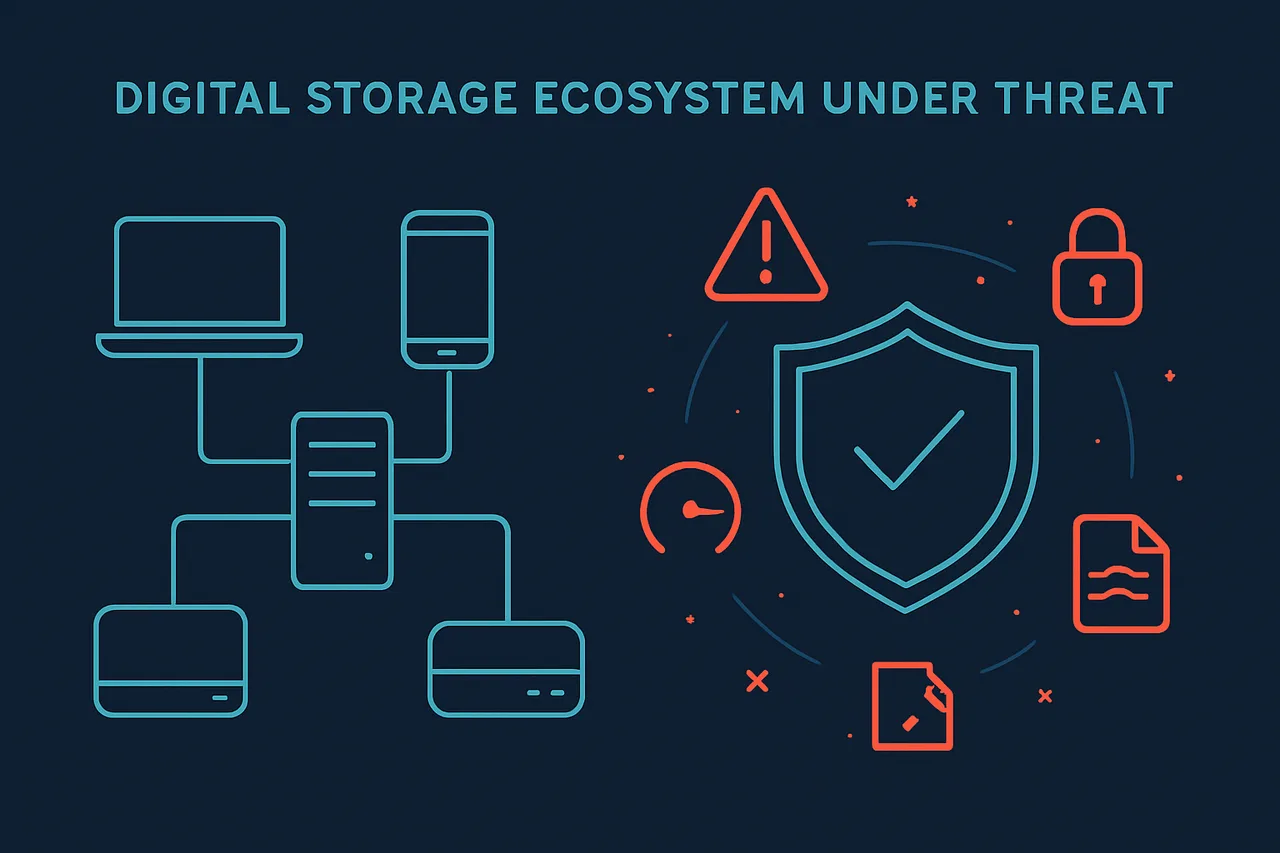
• ISP monitoring and bandwidth throttling from unprotected downloading
• Legal exposure from inadequate privacy measures
• Malware infections from untrusted sources
• Hundreds of hours spent manually renaming and organizing files
• Broken libraries when media servers can't parse inconsistent naming
• Duplicate downloads and wasted storage from poor tracking
This technical guide solves these problems through complete automation. You'll learn to deploy Sonarr and Radarr for intelligent content acquisition, configure NordVPN for bulletproof privacy protection, and integrate everything with Plex or Jellyfin for seamless streaming.
By the end, your system will automatically download, organize, and serve content while maintaining complete privacy and legal protection. No more manual file management. No more ISP letters. No more broken metadata or duplicate files.
This isn't just about convenience—it's about building a sustainable, secure media infrastructure that scales with your collection and protects your privacy in an increasingly monitored digital landscape.
What You'll Need
Hardware Requirements
- Storage: Minimum 2TB available disk space (recommend 4TB+ for large libraries)
- RAM: 8GB minimum, 16GB recommended for processing 4K content
- CPU: Multi-core processor (Intel i5/AMD Ryzen 5 or better) for metadata extraction
- Network: Stable broadband connection for online metadata lookups
Required Software
- Operating System: Windows 10/11, macOS 10.15+, or Ubuntu 20.04+
- Media Server: Plex Media Server v1.32+ or Jellyfin v10.8+
- Automation Tools:
- Filebot v4.9.6+ (license required for GUI version)
- Sonarr v3.0+ for TV series management
- Radarr v4.0+ for movie management
- File Management: Python 3.8+ with pip package manager
Optional but Recommended
- Database: PostgreSQL 13+ or MySQL 8.0+ for advanced metadata storage
- Containerization: Docker Desktop v4.0+ for simplified deployment
- Backup Solution: External drive or cloud storage (Google Drive, Dropbox)
Required Accounts
- TheMovieDB (TMDB) API key (free registration)
- TheTVDB account for TV series metadata
- Plex Pass subscription (optional, for premium features)
Technical Skills
- Basic command line familiarity
- File system navigation knowledge
- Understanding of media file formats (MP4, MKV, AVI)
Step-by-Step Guide
- Set Up Secure VPN Connection with WireGuard Protocol
Before handling large video files that may contain sensitive content, establish a secure connection using Get ProtonVPN with WireGuard protocol. Navigate to ProtonVPN Settings > Connection > Protocol and select "WireGuard". Enable the kill switch under Settings > Advanced > Kill Switch to prevent data leaks during connection drops. This ensures your video organization activities remain private and protects against potential copyright issues when processing downloaded content. WireGuard provides faster speeds essential for moving large video files while maintaining security. [Screenshot: ProtonVPN WireGuard protocol selected with kill switch enabled] - Install and Configure Filebot for Automated Renaming
Download Filebot from filebot.net and install with administrative privileges. Launch Filebot and navigate to Tools > Preferences > License to activate your license (required for automation). Configure the naming scheme by going to Format > Edit Format Expression and enter this custom format:
This format ensures compatibility with Plex naming conventions while adding technical details like video format, codec, and audio channels. The technical metadata helps identify quality differences when you have multiple versions of the same content, preventing confusion during automated sorting.{plex} - {vf} {vc} {ac} {channels}ch - Create Standardized Directory Structure
Establish a hierarchical folder system that automation tools can reliably navigate. Create this structure in your main media drive:
The "Processing" folder serves as a temporary workspace where files undergo organization, while "Unsorted" catches items that automation cannot categorize. This structure prevents the automation system from creating inconsistent folder names and ensures manual intervention points are clearly defined.D:\Media\ ├── Movies\ │ ├── Action\ │ ├── Comedy\ │ ├── Drama\ │ └── Documentary\ ├── TV Shows\ │ ├── Completed Series\ │ └── Ongoing Series\ ├── Unsorted\ └── Processing\ - Configure MediaInfo Integration for Metadata Extraction
Install MediaInfo CLI from mediaarea.net and add it to your system PATH. Navigate to Control Panel > System > Advanced System Settings > Environment Variables and add "C:\Program Files\MediaInfo\CLI\" to your PATH variable. Create a batch script named "extract_metadata.bat" in your Processing folder:
This extracts detailed technical information including resolution, bitrate, and codec data that automated tools use for quality-based organization decisions. Understanding technical specifications helps the system differentiate between 1080p and 4K versions, ensuring proper categorization.@echo off for %%f in (*.mkv *.mp4 *.avi) do ( mediainfo "%%f" > "%%~nf_info.txt" ) echo Metadata extraction complete - Set Up Radarr for Movie Organization
Install Radarr and configure it by navigating to Settings > Media Management. Enable "Rename Movies" and set the movie folder format to:
Under Settings > Profiles > Quality Profiles, create custom profiles for different storage tiers (4K Ultra, 1080p High, 720p Standard). Configure root folders pointing to your Movies directory structure. The IMDB ID inclusion prevents duplicate entries for movies with identical names, while quality indicators help you maintain different versions for various playback devices. [Screenshot: Radarr quality profiles configuration screen]{Movie Title} ({Release Year}) [imdbid-{ImdbId}] - {Quality Title} - Configure Sonarr for TV Series Management
Install Sonarr and navigate to Series > Add Series to configure TV show monitoring. Set the series folder format under Settings > Media Management to:
Configure season folder format as:{Series Title} ({Series Year}) [tvdbid-{TvdbId}]
Enable "Analyze video files" to detect quality automatically. This systematic approach ensures TV episodes are grouped correctly by season and series, while TVDB integration provides accurate metadata for proper identification of episodes, even when original filenames are corrupted or non-standard.Season {season:00} - Implement Automated Quality Assessment Script
Create a PowerShell script named "QualitySort.ps1" to automatically categorize videos by technical quality:
This script automatically sorts videos into quality-based folders, essential for managing storage across different drives and ensuring optimal playback device compatibility. Quality-based organization also helps with bandwidth management when streaming over networks.$videos = Get-ChildItem -Path "D:\Media\Unsorted" -Include *.mkv,*.mp4,*.avi -Recurse foreach ($video in $videos) { $mediaInfo = & mediainfo --Output="Video;%Width%x%Height%" "$($video.FullName)" if ($mediaInfo -match "3840x2160") { Move-Item $video.FullName "D:\Media\4K\" } elseif ($mediaInfo -match "1920x1080") { Move-Item $video.FullName "D:\Media\1080p\" } } - Set Up Plex Media Server Integration
Install Plex Media Server and add libraries pointing to your organized directories. Navigate to Settings > Library and enable "Scan my library automatically" and "Run a partial scan when changes are detected". Configure advanced settings:
Enable thumbnail generation for video preview by checking "Generate video preview thumbnails". This integration ensures your organized library immediately becomes accessible through Plex's interface, providing automatic metadata enhancement and making your organization efforts immediately useful for consumption. [Screenshot: Plex library settings with automatic scanning enabled]Scanner: Plex Movie Scanner Agent: Plex Movie (Legacy) Enable Cinema Trailers: Yes Include adult content: [Your preference] - Configure Automated Duplicate Detection
Install dupeGuru and configure it for video-specific duplicate detection. Navigate to Edit > Preferences > Scan Type and select "Contents". Set the threshold to 95% to catch near-duplicates with different encoding settings. Configure scan parameters:
Duplicate detection prevents storage waste and ensures your organized library doesn't contain redundant files. This is crucial when processing large collections where the same content may exist in multiple formats or quality levels, helping maintain a clean, efficient library structure.File types: mkv,mp4,avi,mov,wmv Ignore differences smaller than: 10MB Word weighting: Enabled Match similar words: Enabled - Establish Automated Backup and Monitoring
Create a scheduled task using Windows Task Scheduler to run weekly library maintenance. Configure the task to execute a comprehensive backup script:
Set the task to run every Sunday at 2:00 AM when system usage is minimal. This automated maintenance ensures your organization system continues functioning reliably, prevents data loss, and maintains organization standards even as new content is added. Regular monitoring catches issues before they compromise your entire organized library structure. [Screenshot: Windows Task Scheduler showing configured weekly maintenance task]robocopy "D:\Media" "E:\MediaBackup" /MIR /R:3 /W:10 /LOG:"C:\Logs\MediaBackup.log" powershell -File "D:\Scripts\QualitySort.ps1" powershell -File "D:\Scripts\OrphanCleanup.ps1"
Common Mistakes to Avoid
When organizing massive video libraries, even experienced users can fall into costly traps. Here are the most critical mistakes that can derail your automation efforts:
⚠️ Warning: Running automation tools without backing up your library first can result in permanent file loss or corruption.
**Always create a complete backup** before implementing any automated organization system. Test your automation rules on a small subset of files first to ensure they work as expected.
⚠️ Warning: Using overly complex folder structures creates confusion and makes files harder to find, defeating the purpose of organization.
Stick to **maximum 3-4 folder levels deep**. Use broad categories like "Year > Genre > Series" rather than creating dozens of nested subcategories.
⚠️ Warning: Relying solely on filename parsing for organization fails when files have inconsistent or poor naming conventions.
Combine multiple detection methods: **filename analysis, metadata extraction, and content recognition**. Tools like MediaInfo and FFprobe can extract technical details even from poorly named files.
⚠️ Warning: Ignoring duplicate detection leads to wasted storage space and fragmented libraries with multiple copies of the same content.
Implement **hash-based duplicate detection** using tools like dupeGuru or fdupes. Compare file checksums rather than just filenames to catch true duplicates.
⚠️ Warning: Setting automation to move files immediately can scatter your library if rules are incorrect, making recovery difficult.
Configure your tools to **copy first, then verify** the organization worked correctly before deleting originals. Use staging directories for initial sorting.
⚠️ Warning: Forgetting to handle special characters and international filenames causes automation failures and corrupted file paths.
Ensure your tools support **Unicode and handle special characters** properly. Test with files containing accents, symbols, and non-English characters before full deployment.
How to Verify Your Setup
After implementing your automated video library organization system, thorough verification ensures everything functions correctly before processing your entire collection. **Initial System Check** Start by running your automation scripts on a small test folder containing 10-20 video files of different formats and sources. Monitor the logs for any error messages and verify that files are being moved to correct directories based on your naming conventions and metadata rules. **Database Integrity Testing** Query your media database to confirm all video metadata is being extracted and stored properly. Check that duplicate detection algorithms correctly identify identical files while avoiding false positives with similar content.
💡 Pro Tip: Create a test suite with intentionally problematic files (corrupted headers, unusual formats, special characters in names) to stress-test your error handling.
**Performance Monitoring**
Use system monitoring tools to track CPU usage, disk I/O, and memory consumption during processing. Your automation should maintain system responsiveness while organizing files efficiently.
**Validation Results**
Successful verification shows consistent file organization patterns, accurate metadata extraction, and proper handling of edge cases. All processed videos should be playable and correctly categorized according to your defined rules.
**Troubleshooting Failed Tests**
If verification fails, check log files for specific error messages. Common issues include insufficient permissions, missing codecs, or database connection problems. Adjust your scripts' error handling and retry mechanisms accordingly.
💡 Pro Tip: Schedule regular verification runs on random samples from your library to catch any degradation in organization quality over time.
Run verification weekly initially, then monthly once your system proves stable and reliable.
Troubleshooting Common Issues
Duplicate Files Not Being Detected
**Problem:** The system creates multiple copies of the same video instead of identifying duplicates. **Cause:** Different file formats, resolutions, or metadata preventing proper matching. **Fix:** 1. Enable hash-based comparison in your software settings 2. Set duplicate detection to compare file size and duration rather than just filename 3. Run a manual duplicate scan with lower similarity thresholds (85-90%) 4. Review and merge results manually for borderline matchesIncorrect Genre/Category Assignment
**Problem:** Videos are being sorted into wrong folders or tagged with irrelevant categories. **Cause:** Insufficient metadata or overly broad automated classification rules. **Fix:** 1. Update your media information database and restart the organization process 2. Create custom rules for specific file naming patterns in your library 3. Manually train the system by correcting 10-15 misclassified examples 4. Adjust classification confidence thresholds to require higher certainty before auto-sortingProcess Stops or Crashes During Organization
**Problem:** The automation tool freezes or terminates unexpectedly partway through processing. **Cause:** Insufficient system resources, corrupted files, or permission issues. **Fix:** 1. Close unnecessary applications to free up RAM and CPU resources 2. Run the process in smaller batches (500-1000 files at a time) 3. Check system logs for specific error messages about file access 4. Ensure the software has full read/write permissions to source and destination folders 5. Exclude problematic files temporarily and process them separatelyMissing Thumbnails or Preview Images
**Problem:** Organized videos display without proper thumbnail previews. **Cause:** Codec compatibility issues or insufficient processing time allocation. **Fix:** 1. Install additional codec packs (K-Lite or LAV Filters) 2. Increase thumbnail generation timeout in software preferences 3. Manually regenerate thumbnails for affected folders 4. Switch to a different thumbnail extraction method in settingsFrequently Asked Questions
Q: How accurate are automated video organization tools?
A: Modern AI-powered tools achieve 85-95% accuracy for basic categorization like file type, resolution, and duration. However, content-based organization (identifying subjects, scenes, or themes) typically ranges from 70-85% accuracy and may require manual review for critical libraries.
Q: What happens if the automation software makes mistakes?
A: Most quality tools include undo functions and backup original file locations before moving content. Always create a complete backup before running automated organization, and start with a small test batch to verify the software works correctly with your specific video formats and naming conventions.
Q: Can I organize videos stored on cloud services automatically?
A: Yes, but with limitations. Tools like Google Photos and Adobe Creative Cloud offer built-in organization features, while third-party software may require downloading files locally first. Cloud processing is generally slower and may incur additional storage costs during the organization process.
Q: How much storage space do I need during the organization process?
A: Plan for 1.5-2x your current library size as temporary storage. The software needs space to create new folder structures and may duplicate files during processing. SSDs significantly speed up the process compared to traditional hard drives.
Q: Should I organize videos by date, content, or technical specifications?
A: Use a hybrid approach with main folders by content type or project, subfolders by date, and consistent file naming that includes technical specs. This structure supports both browsing and searching while maintaining logical organization for different use cases.
Best VPN for Torrenting: ProtonVPN
Unblocks major Streaming Services. Fast speeds with WireGuard protocol. Open-source apps you can trust.
Get ProtonVPN →✓ 30-day money-back guarantee ✓ Works with all torrent clients ✓ Swiss privacy