How do you check if your VPN is leaking your real IP?
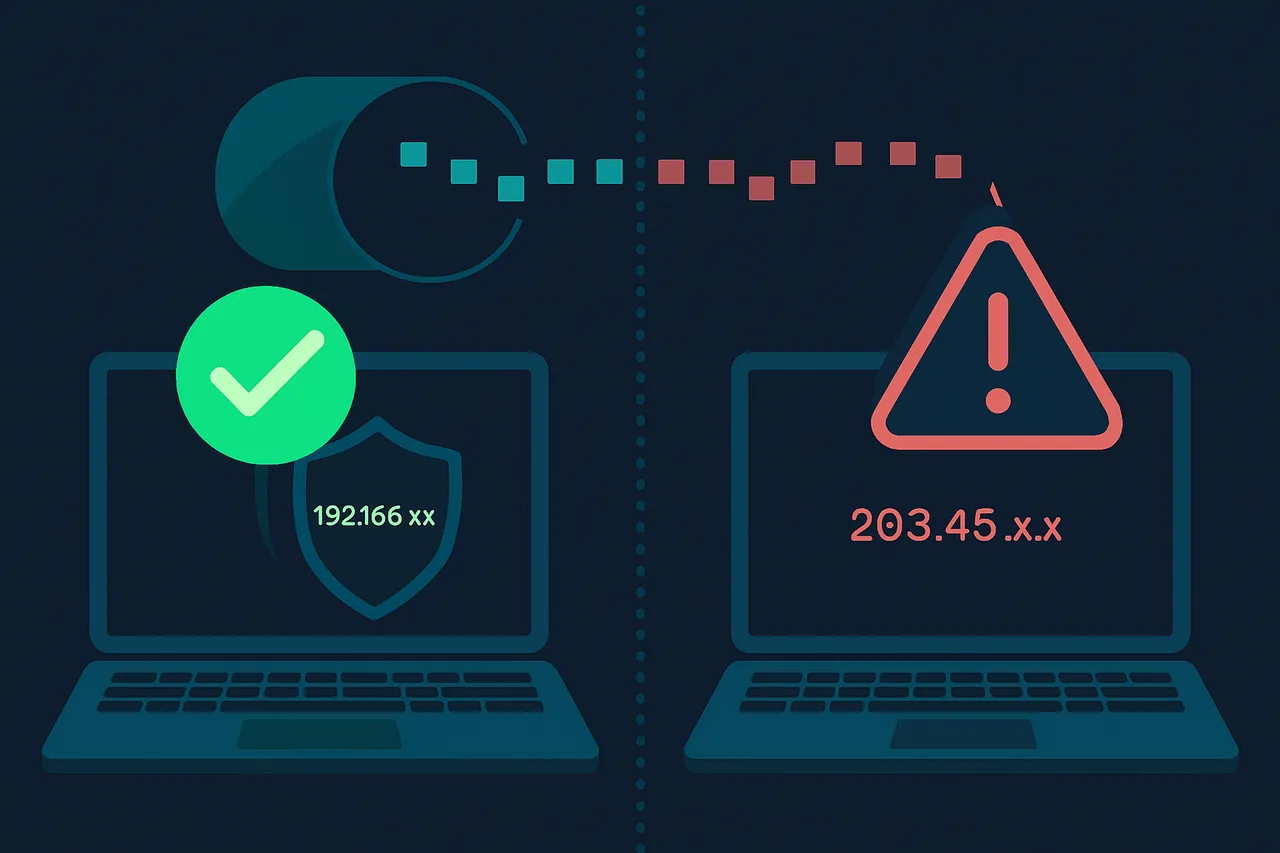
You can check if your VPN is leaking your real IP by visiting a leak test website while your VPN is connected and seeing what information gets exposed. If the site shows your actual home IP address instead of the VPN server's IP, that's a leak — and it means your VPN isn't doing its job. It's a quick test that takes about two minutes, and honestly, everyone using a VPN should run it at least once.
Here's the thing — a lot of people assume that just because their VPN says "connected," everything is fine. But that's not always true. VPNs can leak your real IP through several different channels, and you'd never know unless you actually checked. I've seen people use VPNs for years thinking they were protected, only to discover their DNS requests were going out completely unencrypted the whole time. Pretty alarming when you think about it.
Before we get into the step-by-step process, let me say this: the type of VPN you use matters a lot here. Some VPNs are just more prone to leaks than others, especially free or low-quality ones. If you want a VPN that's genuinely built to prevent leaks, I'd point you toward ProtonVPN — it's what I personally trust and recommend.
⭐ S-Tier VPN: ProtonVPN
S-Tier rated. Swiss-based, open-source, independently audited. No-logs policy verified in court. Secure Core servers for maximum privacy.
Get ProtonVPN →Why does your VPN leak your real IP in the first place?
This is actually a really important question to understand before you start testing. There are three main types of leaks that can expose your real IP address even when you think your VPN is working perfectly. Knowing what they are helps you understand what you're looking for during the test.
The first and most common type is a DNS leak. DNS stands for Domain Name System — it's basically the internet's phone book that translates website names (like google.com) into IP addresses. When you type a website into your browser, your device sends a DNS request to find out where that site lives. If your VPN isn't routing those DNS requests through its own servers, they go out through your regular internet provider instead. Your ISP can then see every website you're trying to visit, which kind of defeats the whole point of using a VPN.
The second type is a WebRTC leak. WebRTC is a browser technology used for things like video calls and real-time communication. The problem is that it can sometimes bypass your VPN entirely and reveal your real IP address directly to websites. This is especially common in Chrome and Firefox. It's a sneaky one because most people don't even know WebRTC exists, let alone that it could be leaking their info.
The third type is just a straight-up IP leak — where your VPN connection drops momentarily (or fails to connect properly) and your real IP gets exposed before the VPN kicks back in. This is why a kill switch matters so much. Without one, any brief interruption in your VPN connection sends unprotected traffic. So yeah, there's a few different ways things can go wrong, which is why testing is so valuable.
How to check if your VPN is leaking your real IP
Alright, let's get into the actual process. This is easier than you might think, and you don't need any special technical knowledge to do it. Just follow these steps and you'll have a clear answer in a few minutes.
Step 1: Find out your real IP address first. Before you connect to your VPN, you need to know what your actual IP address is so you can compare it later. Disconnect your VPN completely, then go to a site like whatismyip.com or simply Google "what is my IP." Write down or screenshot the IP address it shows you. That's your real IP — the one you don't want websites to see.
Step 2: Connect to your VPN. Open your VPN app and connect to any server. Wait for it to fully connect — don't rush this part. Some VPNs take a few seconds to fully establish the encrypted tunnel, and testing too early might give you a false result.
Step 3: Run an IP leak test. Now go to ipleak.net. This is one of the most thorough leak testing sites out there, and it checks for IP leaks, DNS leaks, and WebRTC leaks all at once. The page will automatically start running tests when you load it. Look at the IP address it shows under "Your IP addresses." If it shows the same IP you wrote down in Step 1 — that's a problem. It should show the VPN server's IP address instead, which will be different and located in whatever country you connected to.
Step 4: Check the DNS section. Scroll down on ipleak.net to see the DNS leak results. This section shows which DNS servers your device is using. If you see servers that belong to your internet provider (like Comcast, AT&T, or your local ISP), that's a DNS leak. The DNS servers should belong to your VPN provider, not your ISP.
Step 5: Test for WebRTC leaks specifically. Go to browserleaks.com/webrtc and check the WebRTC section. If your real IP address shows up under the "Local IP Address" or "Public IP Address" fields, you've got a WebRTC leak. This one is particularly common in browsers, so it's worth checking separately even if ipleak.net didn't flag anything.
Step 6: Try a second test site to confirm. It's worth double-checking with dnsleaktest.com as well. Click the "Extended Test" button there — it's more thorough than the standard test and will catch leaks that a quick scan might miss. If both sites give you clean results, you're in good shape.
Step 7: Test with different VPN servers. Here's something a lot of guides skip — your VPN might leak on some servers but not others. If you have the option, run the test again after connecting to a different server location. It only takes a minute and gives you a more complete picture of how your VPN is performing.
What to do if you find a leak
Finding a leak can be frustrating, but don't panic — there are things you can do. First, check your VPN app's settings and look for options related to DNS leak protection or IPv6 leak protection. Many VPNs have these features built in but they're sometimes turned off by default. Enable them and run the test again.
If you're dealing with a WebRTC leak, the fix is usually in your browser settings rather than your VPN app. In Firefox, you can type "about:config" in the address bar, search for "media.peerconnection.enabled," and set it to false. In Chrome, you'll need a browser extension like "WebRTC Leak Prevent" since Chrome doesn't give you a built-in way to disable it. It's a bit annoying but it works.
For DNS leaks specifically, you can also try manually setting your DNS servers to ones that aren't tied to your ISP. ProtonVPN, for example, uses its own DNS servers and routes all DNS requests through the encrypted tunnel automatically — which is exactly how it should work. If your current VPN doesn't do this reliably, that's honestly a sign you might want to switch.
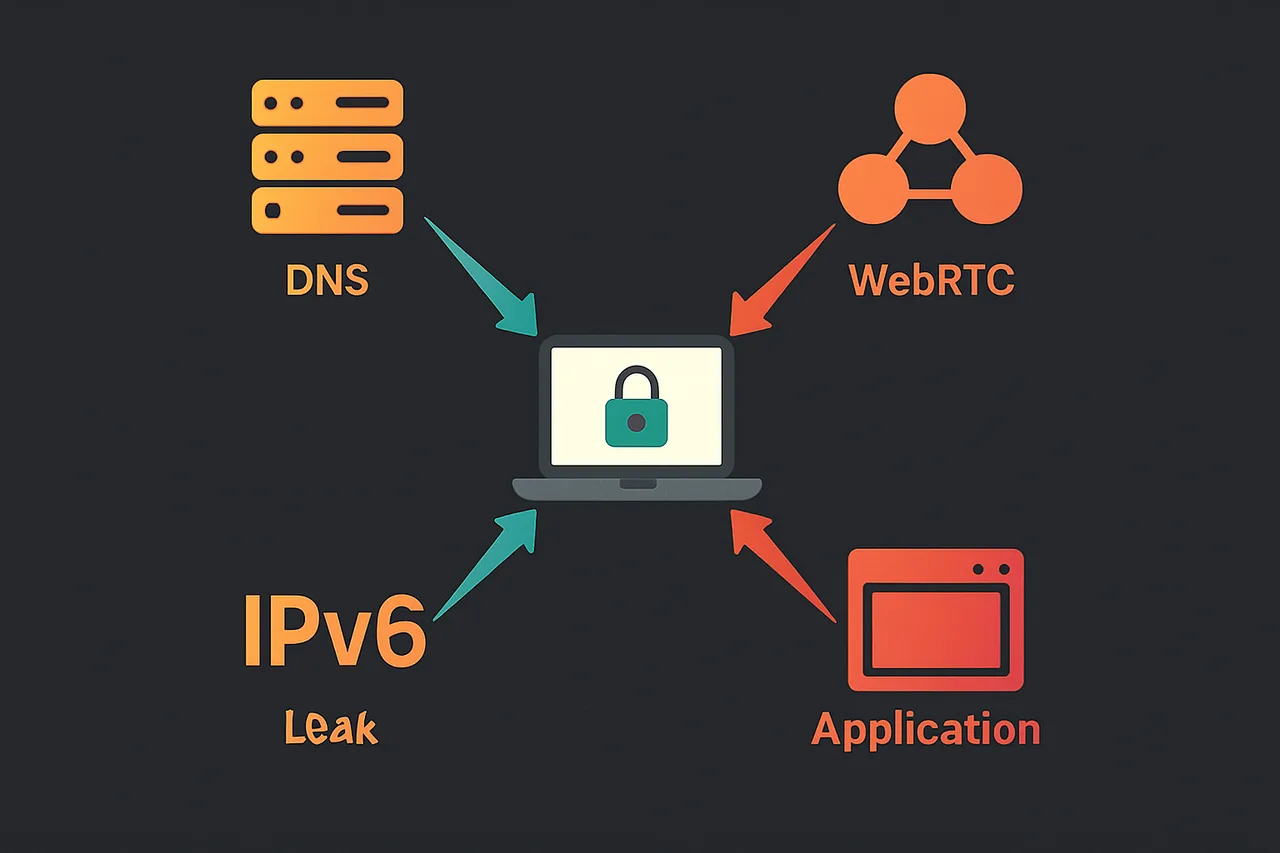
Now, if you've tried all the fixes and you're still seeing leaks, that's a pretty strong signal that your VPN just isn't reliable enough. Some cheaper or free VPNs simply don't have the infrastructure to prevent leaks consistently. According to VPNTierLists.com, this is one of the most common issues with lower-tier VPN services — they might connect fine but they don't handle edge cases well. At that point, switching to a more Trustworthy VPN is the right call.
Frequently asked questions
Is it normal for a VPN to leak? No, it shouldn't be. A properly configured, high-quality VPN should not leak your real IP address, DNS requests, or WebRTC data. If you're seeing leaks, it's either a configuration issue or a problem with the VPN itself. Good VPNs are specifically built to prevent this.
Do I need to check for leaks regularly? I'd say yes, at least every few months or whenever you update your VPN app. Software updates can sometimes change settings or introduce new bugs. Running a quick test after major updates is a good habit to get into. It only takes a couple of minutes and gives you peace of mind.
Can a VPN leak my IP on mobile too? Absolutely. The same types of leaks that happen on desktop can happen on Android and iOS. The good news is that most reputable VPN apps for mobile have leak protection built in. But it's still worth testing — you can use the same websites (ipleak.net, browserleaks.com) from your phone's browser while connected to the VPN.
What's the safest VPN to avoid leaks? ProtonVPN is my top recommendation here. It's open-source, which means security researchers can actually look at the code and verify it works as claimed. It has built-in DNS leak protection, IPv6 leak protection, and a kill switch. The no-logs policy has been verified in real court cases — not just a marketing claim. For anyone serious about not leaking their real IP, it's the one I'd go with.
Bottom line
Checking if your VPN is leaking your real IP is one of the most important things you can do to verify your privacy is actually protected. The test takes about five minutes, uses free tools, and gives you a clear yes or no answer. Don't just assume your VPN is working — actually confirm it.
If you find a leak, start with the settings fixes I mentioned. If those don't work, it might be time to switch to a VPN that takes leak prevention seriously. ProtonVPN is consistently one of the best options for this — it's built from the ground up with privacy and security in mind, and it's one of the few VPNs where you can independently verify those claims. You can try it for free to see how it performs before committing to anything.
Once you've confirmed your VPN is clean, you might also want to read up on kill switches and what they do — because preventing leaks during a VPN drop is just as important as preventing them during normal use.
" } ```