How do you set up a VPN on Firestick or Android TV in 2026?
Setting up a VPN on your Firestick or Android TV in 2026 is actually a lot simpler than most people expect. You don't need to be a tech wizard or mess around with complicated settings. In most cases, it's just a matter of downloading an app, logging in, and hitting connect — and you're done.
Whether you're trying to keep your streaming habits private, get around geo-restrictions, or just add an extra layer of security to your home network, a VPN on your TV device is genuinely useful. And with more people cutting the cord and relying on streaming boxes like the Firestick or Android TV devices, it's becoming more important than ever to think about what data you're sending out there.
Before we get into the how-to, let me quickly mention the VPN I personally recommend for this. After looking at a lot of options (and checking what the folks over at VPNTierLists.com rate highly), ProtonVPN is the one I keep coming back to. It's Swiss-based, has open-source apps, and its no-logs policy has actually been verified in court — not just a marketing claim.
⭐ S-Tier VPN: ProtonVPN
S-Tier rated. Swiss-based, open-source, independently audited. No-logs policy verified in court. Secure Core servers for maximum privacy.
Get ProtonVPN →Why would you even want a VPN on your Firestick or Android TV?
Good question. A lot of people think of VPNs as something you use on your laptop when you're at a coffee shop. But your TV streaming device is sending data too — about what you watch, when you watch it, and where you're located. Your ISP can see all of that. So can Amazon, if you're on a Firestick.
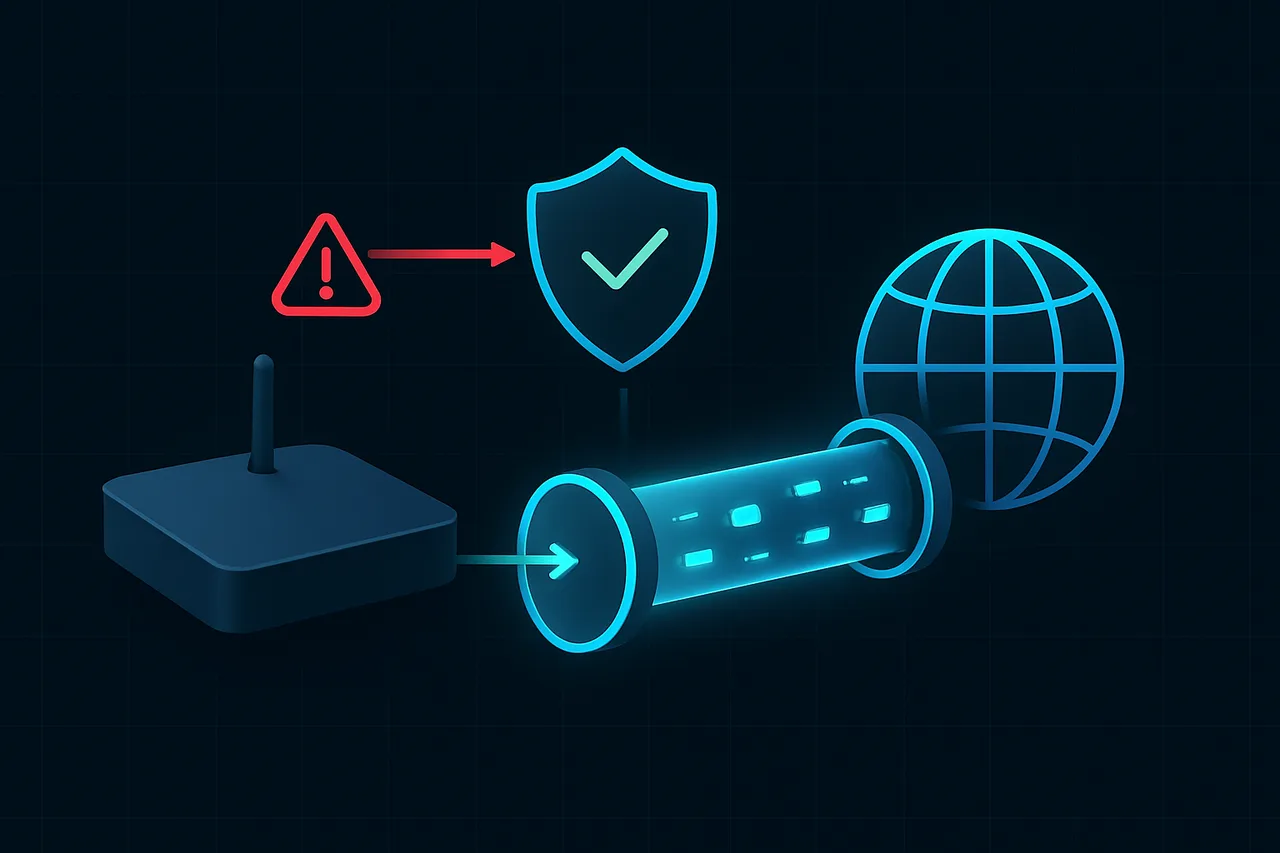
A VPN (Virtual Private Network) encrypts your internet traffic and routes it through a server in another location. That means your ISP sees a bunch of encrypted gibberish instead of your actual streaming activity. It also means websites and Streaming Services see the VPN server's IP address instead of your real one.
Here's the thing — this matters more than people realize. ISPs in a lot of countries are legally allowed to sell your browsing and streaming data to advertisers. Even if you're not doing anything sketchy, that's a pretty uncomfortable thought. A VPN puts a wall between your activity and anyone trying to peek at it.
There's also the geo-restriction angle. Some streaming content is only available in certain countries. Say you're traveling abroad and want to access content from back home — a VPN lets you connect to a server in your home country and access it like normal. I think this is one of the most practical everyday uses, honestly.
Now, Android TV and Firestick are both Android-based platforms, which is great news because it means they support VPN apps natively. You don't need to do anything fancy like setting up a VPN on your router (though that's an option too). You can just install the app directly on the device.
How to set up a VPN on Amazon Firestick in 2026
The Firestick runs a modified version of Android, so it supports Android apps — including VPN apps. Here's how to get it set up. This process should work on all current Firestick models including the Firestick 4K Max and the basic HD version.
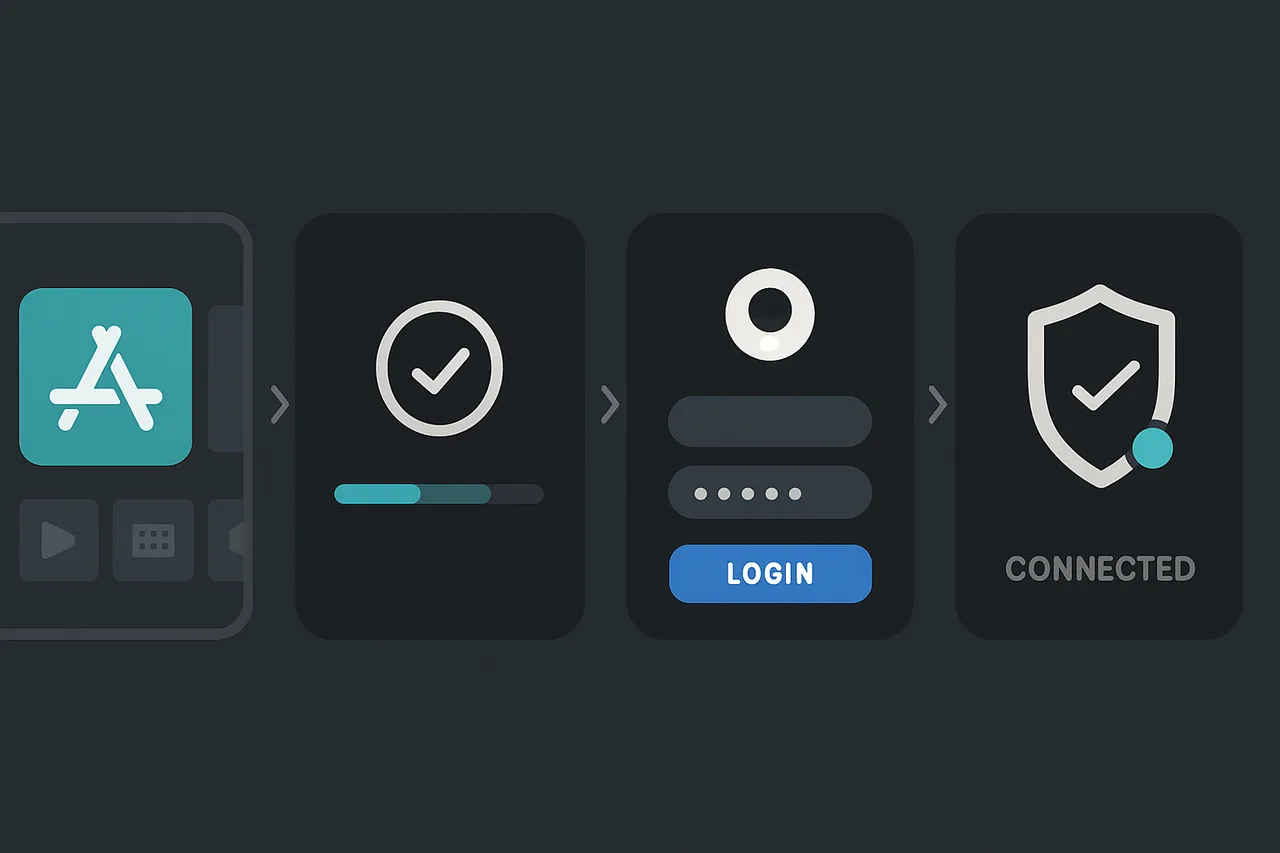
Step 1: Open the Amazon Appstore. From your Firestick home screen, navigate to the search icon (the magnifying glass) at the top. Type in the name of your VPN provider. If you're using ProtonVPN, just search "ProtonVPN" and it should come right up. Select the app and click "Download" or "Get."
Step 2: Wait for the install to finish. It usually only takes a minute or two depending on your connection speed. Once it's done, click "Open" to launch the app.
Step 3: Log in to your account. Enter your VPN username and password. If you don't have an account yet, you'll need to sign up on the VPN provider's website first — you can do that from your phone or computer, then log in on the Firestick.
Step 4: Allow the VPN permission. The first time you connect, Android (and by extension, Firestick) will ask if you want to allow the VPN to set up a connection. You'll see a pop-up asking you to confirm. Hit "OK" or "Allow" — this is normal and expected. Without this, the VPN can't do its job.
Step 5: Choose a server and connect. Most VPN apps have a big "Connect" button or a map where you can pick a server location. If you just want privacy and speed, choose a server close to your actual location. If you want to access content from a specific country, pick a server there. Tap connect and you're good to go.
That's really it. The whole process takes maybe five minutes once you have your account set up. You'll usually see a small VPN icon in the status bar or notification area when it's active.
How to set up a VPN on Android TV in 2026
Android TV (and Google TV, which is built on top of Android TV) makes this even more straightforward because it has full access to the Google Play Store. Devices like the Chromecast with Google TV, Sony Android TVs, Nvidia Shield, and many others fall into this category.
Step 1: Go to the Google Play Store. On your Android TV home screen, find the Play Store app. It's usually right on the home screen or in the apps section. Open it up.
Step 2: Search for your VPN app. Use the search bar to find your VPN. Type in "ProtonVPN" (or whatever provider you're using) and select it from the results. Make sure you're downloading the official app — check the developer name to be sure.
Step 3: Install and open the app. Click Install and wait for it to download. Once it's done, open the app directly from the Play Store or find it in your apps list.
Step 4: Sign in and grant permissions. Same as with Firestick — log in with your credentials and approve the VPN connection request when it pops up. This is just Android asking you to confirm that you trust the app to manage your network connection.
Step 5: Connect to a server. Pick your server location and hit connect. You should see the VPN status change to "Connected" within a few seconds. Some apps show your new IP address once you're connected, which is a nice confirmation that it's working.
One thing worth mentioning — if your Android TV doesn't have the Play Store (some budget brands use a stripped-down version of Android TV Without Google Services), you might need to sideload the APK. This is a bit more technical, but it's doable. You'd enable "Unknown sources" in the device settings, download the APK file using a file manager app, and install it manually. Most major VPN providers publish their APK files on their websites for exactly this reason.
Common issues and things to watch out for
One of the most common problems people run into is the VPN app not appearing in the app store. This can happen if the app isn't officially listed for TV devices. In that case, sideloading is your best bet — it sounds scary but it's really just downloading and installing a file manually.
Another thing to keep in mind is speed. Running a VPN does add some overhead, and depending on the server you pick and how far away it is, you might notice some slowdown. If your streaming starts buffering more than usual, try switching to a server that's geographically closer to you. Most good VPN apps make this easy — ProtonVPN, for instance, shows you the server load so you can pick one that isn't overcrowded.
Some streaming services actively try to block VPN traffic. This is an ongoing cat-and-mouse game between VPN providers and streaming platforms. If you find a particular service isn't working while your VPN is on, try switching to a different server. Premium VPN providers tend to stay on top of this and update their servers regularly to work around blocks.
Also, don't forget to check whether your VPN has a kill switch feature and whether it's enabled. A kill switch cuts your internet connection if the VPN drops unexpectedly, so your real IP never gets exposed. It's a small but important detail, especially if you care about privacy.
Frequently asked questions
Can I use a free VPN on my Firestick or Android TV? Technically yes, but I'd be cautious. Free VPNs often have data caps, slower speeds, and — more importantly — some of them make money by logging and selling your data, which defeats the whole purpose. ProtonVPN does have a free tier that's genuinely decent and doesn't have those shady practices, so that's worth checking out if you're not ready to pay.
Will a VPN slow down my streaming? It can, but not by a huge amount if you're using a good VPN and picking the right server. In my experience, the difference is barely noticeable on a solid internet connection. If you're already on a slower connection, you might feel it more. Choosing a nearby server helps a lot.
Do I need to keep the VPN on all the time? That's up to you. Leaving it on all the time gives you constant protection, but some people prefer to turn it on only when they're watching something they want to keep private. There's no wrong answer — it depends on your personal privacy priorities.
Does a VPN work on all Firestick and Android TV models in 2026? Yes, pretty much. As long as your device can install apps (which all current models can), you can run a VPN. Older devices might be a bit slower, but the VPN itself will still work fine.
So should you set up a VPN on your streaming device?
Honestly, I think it's worth doing. It's a simple setup, it takes maybe five minutes, and the privacy benefits are real. Your streaming activity is your business — not your ISP's, not Amazon's, and not any advertiser's.
If you're ready to get started, ProtonVPN is the one I'd point you toward. It's transparent, independently audited, and has apps that work great on both Firestick and Android TV. There's even a free tier if you want to try it before committing to a paid plan.
Once you've got your VPN sorted, you might also want to think about your broader digital privacy — things like your data sitting on broker sites and being sold around the internet. But that's a topic for another day. For now, getting a VPN on your TV device is a solid first step and honestly one of the easiest privacy wins you can make in 2026.
" } ```