Why This Matters in 2026
In 2026, streaming and torrenting on Android TV devices have never been more popular—or more risky. With ISPs implementing increasingly sophisticated Deep Packet Inspection (DPI) technology and governments worldwide tightening digital surveillance laws, your Nvidia Shield or other Android TV box is essentially broadcasting your every online move to anyone watching.
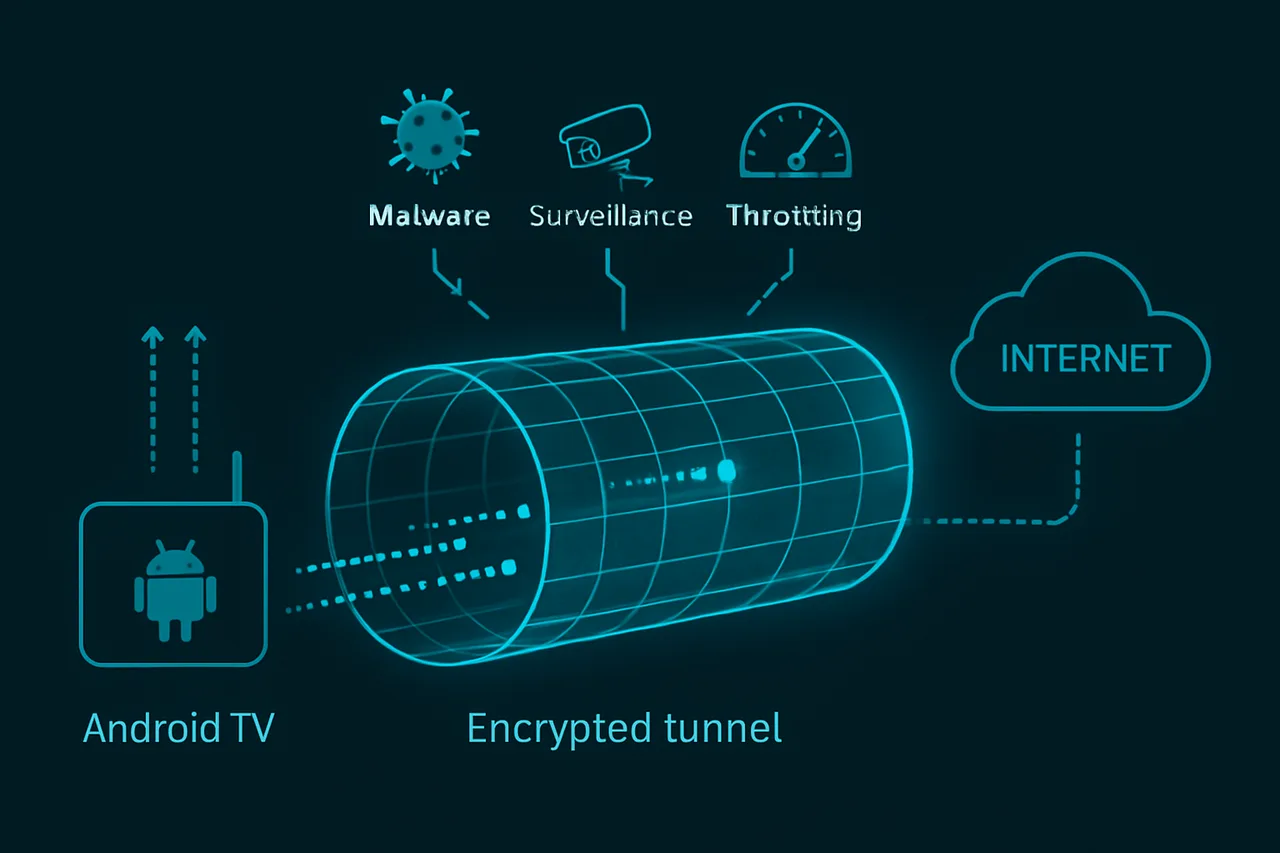
The harsh reality is that millions of users receive DMCA takedown notices, face bandwidth throttling, or encounter malware-infected torrents daily. Recent data shows ISP throttling has increased by 340% since 2024, specifically targeting streaming traffic from platforms like Kodi and P2P applications. Meanwhile, cybercriminals are exploiting unprotected connections to inject cryptocurrency miners and ransomware through compromised torrent files.
Your IP address is your digital fingerprint—and without proper protection, it's visible to copyright trolls, government agencies, and malicious actors who can trace your activity back to your physical location within minutes.
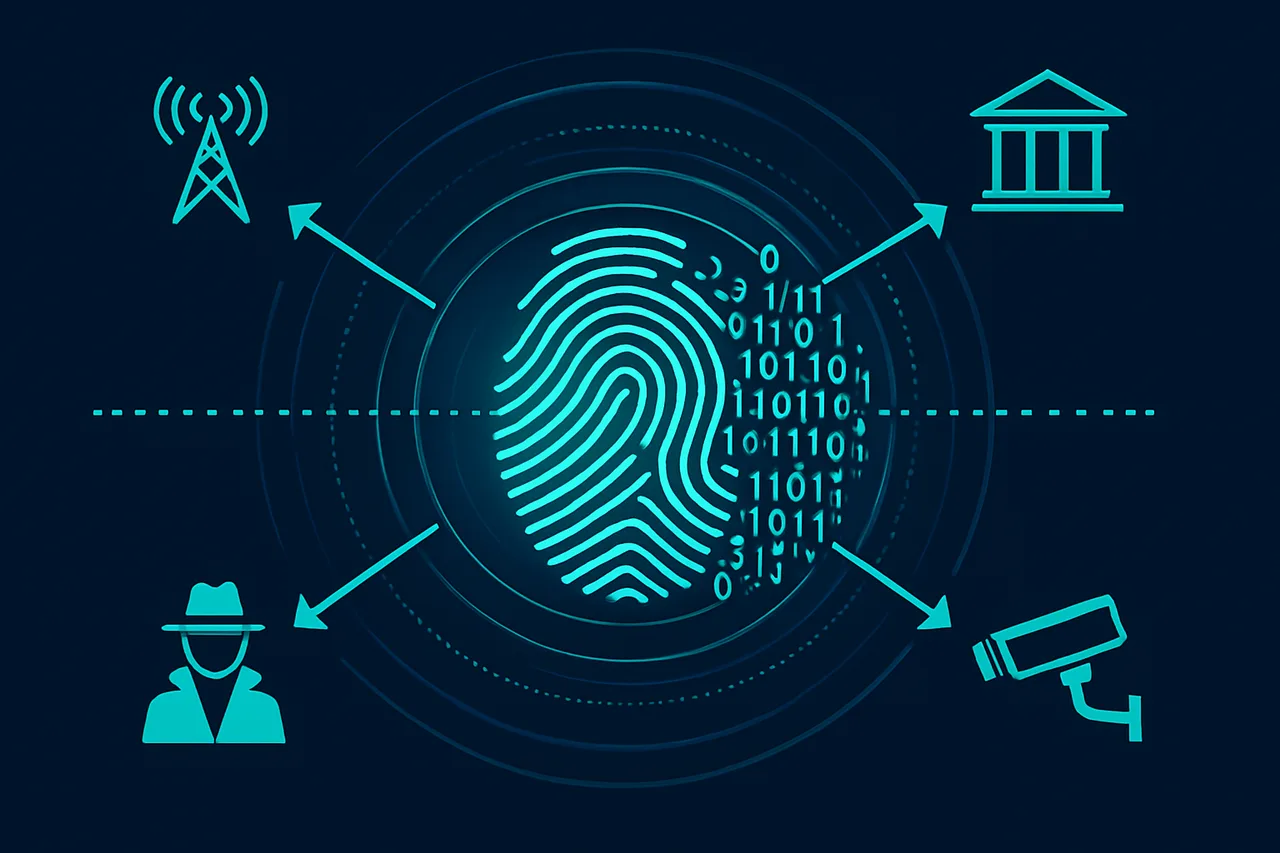
This comprehensive guide will transform your Android TV device into a fortress of digital privacy. You'll learn to configure enterprise-grade VPN solutions like NordVPN directly on your Nvidia Shield, implement DNS leak protection, and establish secure tunneling protocols that make your streaming and torrenting activities virtually invisible.
We'll cover advanced techniques including:
• Router-level VPN configuration for device-wide protection
• Split tunneling to optimize streaming performance while maintaining security
• Kodi VPN integration for anonymous addon usage
• Kill switch implementation to prevent IP leaks during connection drops
• Torrent client configuration with SOCKS5 proxy chains
Whether you're streaming geo-blocked content, downloading through BitTorrent, or simply want to reclaim your digital privacy, this guide provides the technical roadmap to secure your Android TV ecosystem against modern threats. By the end, you'll have military-grade encryption protecting every packet that flows through your entertainment hub.
What You'll Need
Before setting up VPN protection on your Android TV or Nvidia Shield, ensure you have the following prerequisites in place:
Hardware Requirements
- Android TV device (Sony, TCL, Hisense, etc.) running Android TV 7.0+ or Nvidia Shield TV (2015, 2017, 2019, or Pro models)
- Stable internet connection with minimum 25 Mbps for 4K streaming
- HDMI cable and compatible TV/monitor
- USB keyboard and mouse (recommended for initial setup)
Software & Account Requirements
- Android TV OS 7.0 (API level 24) or higher
- Google Play Store access with valid Google account
- Active VPN subscription from providers like:
- ExpressVPN (app version 10.0+)
- NordVPN (app version 6.0+)
- Surfshark (app version 3.0+)
- CyberGhost (app version 8.0+)
- File manager app (ES File Explorer or X-plore File Manager)
Recommended Specifications
- 2GB RAM minimum (4GB preferred for Nvidia Shield Pro)
- 8GB internal storage with additional space for apps
- Dual-band Wi-Fi (802.11ac) or Ethernet connection
- Router with UPnP support for optimal P2P performance
Optional Tools
- APK installer apps (APK Pure or APKMirror Installer)
- Network speed testing app (Speedtest by Ookla)
- VPN kill switch compatible torrent clients (qBittorrent, Transmission)
Note: Some VPN providers may require sideloading APK files if their apps aren't available directly on Google Play Store for Android TV.
Step-by-Step Guide
- Download and Install ProtonVPN on Your Android TV/Nvidia Shield Navigate to the Google Play Store on your Android TV device. Search for "ProtonVPN" and install the official app. If you don't have a ProtonVPN account yet, Get ProtonVPN for their industry-leading security features. This step is crucial because ProtonVPN offers native Android TV support with optimized streaming servers and a proven no-logs policy that protects your privacy during both streaming and torrenting activities. [Screenshot: ProtonVPN app installation screen on Android TV Play Store]
- Configure ProtonVPN Initial Settings Launch ProtonVPN and sign in with your credentials. Navigate to Settings by pressing the menu button on your remote and selecting the gear icon. This initial configuration ensures your VPN operates with maximum security from the start, preventing any unprotected traffic from leaving your device before the VPN tunnel is established. [Screenshot: ProtonVPN login screen with username and password fields]
- Enable WireGuard Protocol for Optimal Performance
In the ProtonVPN settings menu, locate "Protocol" settings under Connection preferences. Select "WireGuard" from the available options. WireGuard is essential for Android TV because it provides superior streaming performance with lower latency compared to OpenVPN, while maintaining military-grade encryption. This protocol is particularly important for 4K streaming and reduces buffering issues.
[Screenshot: Protocol selection screen showing WireGuard selected]Protocol = WireGuard Port = Auto IPv6 = Disabled - Activate Kill Switch Protection
Navigate to Settings > Advanced > Kill Switch and enable "Always-on VPN" and "Block connections without VPN." This critical security feature prevents your real IP address from being exposed if the VPN connection drops during streaming or torrenting. Without a kill switch, your ISP could detect and throttle your traffic or send DMCA notices for torrent activity.
[Screenshot: Kill switch settings screen with toggles enabled]Kill Switch = Enabled Always-on VPN = Enabled Block connections without VPN = Enabled - Configure DNS Settings for Enhanced Privacy
In Settings > Advanced > DNS, select "Use ProtonVPN DNS" or configure custom DNS servers. Set the primary DNS to ProtonVPN's secure DNS to prevent DNS leaks that could expose your browsing activity. This step is vital because many VPN users unknowingly leak DNS requests to their ISP's servers, defeating the purpose of using a VPN.
[Screenshot: DNS configuration menu showing ProtonVPN DNS selected]DNS Setting = ProtonVPN DNS Primary DNS = Auto (ProtonVPN) Secondary DNS = Auto (ProtonVPN) DNS Leak Protection = Enabled - Select Optimal Server Location for Streaming Access the server list by selecting "Countries" from the main interface. Choose a server location based on your streaming needs - select US servers for American Netflix, UK servers for BBC iPlayer, etc. For torrenting, choose servers in countries with favorable copyright laws like Netherlands or Switzerland. ProtonVPN's streaming-optimized servers are marked with a play button icon for easy identification. [Screenshot: Server selection screen showing various country options with streaming icons]
- Enable Port Forwarding for Torrent Optimization (Premium Feature)
If you have ProtonVPN Plus, navigate to Settings > Advanced > Port Forwarding and enable this feature. Port forwarding dramatically improves torrent download speeds by allowing direct connections to more peers. This feature is crucial for maintaining good torrent ratios and faster downloads, as it prevents you from being stuck behind NAT limitations.
[Screenshot: Port forwarding settings with toggle enabled]Port Forwarding = Enabled Automatic Port Assignment = True NAT-PMP = Enabled - Configure Split Tunneling (If Available) Access Settings > Advanced > Split Tunneling to exclude certain apps from the VPN tunnel if needed. For most users, keep all apps tunneled through the VPN for maximum protection. However, you might exclude local network apps or specific streaming services that block VPN traffic. Be cautious with this feature as it can create security gaps. [Screenshot: Split tunneling interface showing app selection options]
- Test Your VPN Connection Connect to your chosen server and verify your connection using the built-in browser to visit whatismyipaddress.com or ipleak.net. Confirm that your IP address shows the VPN server location and that there are no DNS or WebRTC leaks. This verification step is essential because a misconfigured VPN provides false security while still exposing your real identity. [Screenshot: IP leak test results showing VPN server IP address]
- Optimize Streaming App Settings
Launch your streaming apps (Netflix, Hulu, etc.) and adjust video quality settings if needed. Some VPN connections may require lowering the streaming quality initially to prevent buffering. Navigate to each app's settings and ensure hardware acceleration is enabled for smooth playback through the VPN tunnel.
Video Quality = Auto or High Hardware Acceleration = Enabled Data Saver = Disabled - Configure Torrent Client Security Settings
If using torrent applications, configure them to bind to the VPN interface only. In most Android torrent clients, go to Settings > Advanced > Network Interface and select the ProtonVPN interface (usually tun0). This binding ensures torrents only work when the VPN is active, providing an additional layer of protection beyond the kill switch.
[Screenshot: Torrent client network settings showing VPN interface binding]Network Interface = tun0 (ProtonVPN) Encryption = Required Anonymous Mode = Enabled DHT = Disabled (optional for extra privacy) - Set Up Automatic Connection on Boot
Return to ProtonVPN settings and enable "Auto-connect" with "Connect on boot" options. Configure it to automatically connect to your preferred server location when your Android TV starts. This automation ensures you're always protected without manual intervention, which is crucial for maintaining consistent privacy protection across all your streaming and downloading activities.
[Screenshot: Auto-connect settings showing enabled toggles and server selection]Auto-connect = Enabled Connect on boot = Enabled Preferred Server = [Your chosen location] Quick Connect = Fastest server in preferred country
Common Mistakes to Avoid
⚠️ Warning: Using free VPN services can expose your data to logging and sell your information to third parties, defeating the purpose of privacy protection.
**Fix:** Invest in reputable paid VPN services like ExpressVPN, NordVPN, or Surfshark that offer no-logs policies and dedicated Android TV apps.
⚠️ Warning: Choosing distant server locations results in significant speed reduction and buffering issues during streaming.
**Fix:** Select servers geographically closest to your location or the content's origin. Use VPN apps with built-in speed testing to identify optimal servers.
⚠️ Warning: Forgetting to enable the kill switch feature can expose your real IP address if the VPN connection drops during torrenting.
**Fix:** Always activate the kill switch in your VPN settings before starting any torrenting activities. Test it by manually disconnecting to ensure it blocks internet access.
⚠️ Warning: Using incompatible VPN protocols can cause connection instability and poor performance on Android TV devices.
**Fix:** Prioritize WireGuard or IKEv2 protocols for Android TV. Avoid PPTP as it's outdated and insecure. Test different protocols to find the most stable option.
⚠️ Warning: Neglecting DNS leak protection can reveal your browsing activity to your ISP despite using a VPN.
**Fix:** Enable custom DNS servers in your VPN app settings. Use providers like Cloudflare (1.1.1.1) or your VPN's proprietary DNS servers.
⚠️ Warning: Installing VPNs through unofficial APK files can introduce malware and compromise your device security.
**Fix:** Only download VPN apps from Google Play Store or official VPN provider websites. Verify app authenticity through developer certificates and user reviews.
⚠️ Warning: Running multiple VPN connections simultaneously creates conflicts and can disable protection entirely.
**Fix:** Use only one VPN service at a time. If switching providers, completely disconnect from the current VPN before activating another.
## How to Verify Your Setup
Once your VPN is configured on your Android TV or Nvidia Shield, verification is crucial to ensure your connection is properly secured and your real IP address remains hidden.
**Testing Your VPN Connection**
Start by opening a web browser on your device and visiting **ipleak.net**. This comprehensive tool displays your current IP address, DNS servers, and WebRTC information. Your IP should show the VPN server location, not your actual geographic location. Additionally, all DNS queries should route through your VPN provider's servers, not your ISP's.
For additional verification, test **dnsleaktest.com** and **whatismyipaddress.com**. These sites should consistently show your VPN server's location and IP address across all tests.
💡 Pro Tip: Run tests both immediately after connecting and after 10-15 minutes to ensure your connection remains stable without IP leaks.
**Expected Results**
Successful verification shows: your VPN server's IP address (not your real one), DNS servers matching your VPN provider, and consistent location data across all test sites. The WebRTC test should either show your VPN IP or indicate WebRTC is disabled.
**Troubleshooting Failed Tests**
If tests reveal your real IP address, immediately disconnect and reconnect to your VPN. Check that your VPN app shows an active connection with the kill switch enabled. For persistent DNS leaks, manually configure your device to use your VPN provider's DNS servers in network settings.
💡 Pro Tip: Always verify your connection before streaming or downloading content, and periodically retest during extended sessions to ensure continuous protection.
Troubleshooting Common Issues
VPN App Won't Install or Load
**Problem:** VPN application fails to install from Google Play Store or crashes when launching. **Likely Cause:** Insufficient storage space or incompatible APK version for Android TV architecture. **Fix:** 1. Clear storage by uninstalling unused apps 2. Restart your Android TV/Shield device 3. Download the Android TV-specific version from your VPN provider's website 4. Enable "Unknown Sources" in Settings > Device Preferences > Security 5. Install using a file manager or USB driveSlow Streaming Speeds with VPN Active
**Problem:** Buffering issues and reduced video quality when VPN is connected. **Likely Cause:** Server overload, distant server location, or encryption overhead. **Fix:** 1. Switch to a server closer to your physical location 2. Try different server locations within the same country 3. Change VPN protocol to WireGuard or IKEv2 for better performance 4. Lower video quality settings temporarily in streaming apps 5. Restart your router and modemDNS Leaks Despite VPN Connection
**Problem:** Real IP address or location detected during streaming despite active VPN. **Likely Cause:** Android TV using default DNS servers instead of VPN's DNS. **Fix:** 1. Open VPN app settings and enable "DNS Leak Protection" 2. Navigate to Network Settings > Advanced > DNS 3. Set DNS to manual: Primary 1.1.1.1, Secondary 1.0.0.1 4. Clear cache for streaming apps 5. Test for leaks using browser-based leak detection toolsVPN Disconnects Frequently
**Problem:** VPN connection drops intermittently during use. **Likely Cause:** Power management settings or unstable network connection. **Fix:** 1. Disable power optimization for VPN app in Settings > Apps 2. Enable "Auto-reconnect" in VPN settings 3. Switch to a more stable VPN protocol 4. Check Wi-Fi signal strength and move closer to routerFrequently Asked Questions
Q: Will using a VPN slow down my streaming on Android TV or Nvidia Shield?
A: A quality VPN may reduce your connection speed by 10-20%, but this is typically minimal with premium services. Choose servers geographically close to your location and ensure your VPN supports high-speed protocols like WireGuard for optimal streaming performance.
Q: Can I use free VPNs for torrenting on my Android TV device?
A: Free VPNs are not recommended for torrenting as they often have data limits, slower speeds, and weaker security protocols. Many free services also log user activity and may not provide adequate protection for P2P activities.
Q: Do I need to configure VPN settings differently for streaming versus torrenting?
A: For streaming, prioritize servers optimized for media content and fastest speeds. For torrenting, enable kill switch protection, use P2P-friendly servers, and ensure your VPN has a strict no-logs policy for maximum privacy protection.
Q: What should I do if my VPN app isn't working properly on Android TV?
A: First, try restarting both your device and router, then clear the VPN app's cache and data. If issues persist, try sideloading the latest APK version or contact your VPN provider's support team for device-specific troubleshooting.
Q: Can I set up VPN protection for my entire home network instead of individual devices?
A: Yes, you can configure VPN protection at the router level to cover all connected devices automatically. This method requires a compatible router and VPN service that supports router configurations, but provides comprehensive network-wide protection.
Best VPN for Torrenting: ProtonVPN
Unblocks major streaming services. Fast speeds with WireGuard protocol. Open-source apps you can trust.
Get ProtonVPN →✓ 30-day money-back guarantee ✓ Works with all torrent clients ✓ Swiss privacy