Why This Matters in 2026
In 2026, ISPs have become more aggressive than ever in monitoring and throttling peer-to-peer traffic. With new AI-powered deep packet inspection tools and stricter copyright enforcement legislation, a single exposed torrent session can trigger automatic DMCA notices, bandwidth throttling, or even account suspension within hours. What makes this particularly dangerous is that millions of Windows users believe they're protected by VPN services like NordVPN, only to discover their torrent traffic is silently leaking through a hidden IPv6 tunnel called Teredo.
The harsh reality is that most torrent users face a perfect storm of privacy threats in 2024. ISPs are sending cease-and-desist letters at record rates, implementing sophisticated traffic shaping that can slow your entire connection to a crawl when P2P activity is detected. Meanwhile, malicious actors are increasingly targeting torrent swarms with malware-infected files, and copyright trolls are filing lawsuits against IP addresses caught downloading protected content. Even users who think they've configured their windows privacy settings correctly are unknowingly broadcasting their real IP address to every peer in the swarm.
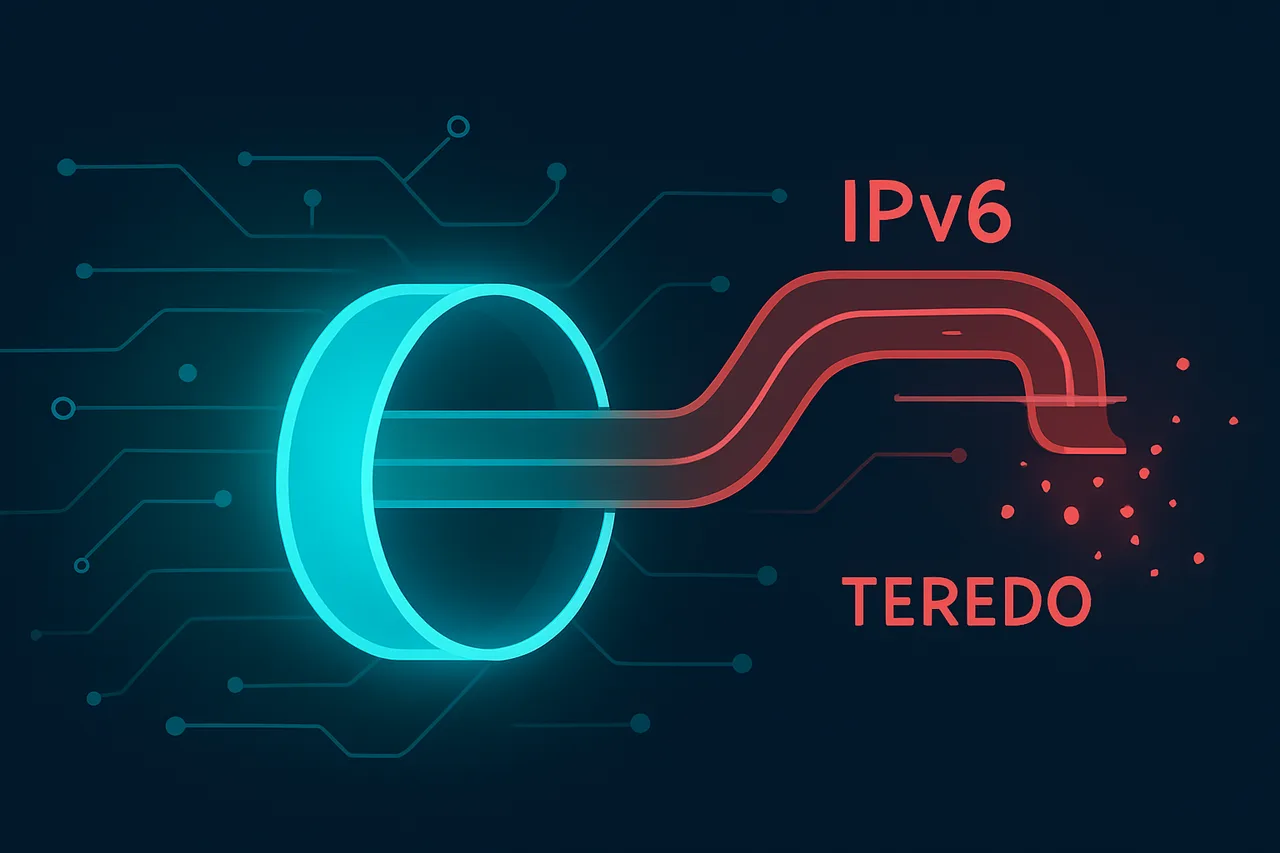
The core problem lies in Windows' IPv6 implementation and its interaction with VPN kill switch technology. While your VPN may successfully route IPv4 torrent traffic through encrypted tunnels, Windows quietly establishes IPv6 connections through Teredo tunneling that bypass your VPN entirely. This creates a DNS leak scenario where your actual location and ISP information becomes visible to anyone monitoring the torrent swarm, rendering your privacy protection completely useless.
This comprehensive guide will teach you how to identify and disable the specific Windows privacy setting that's exposing your torrent activity. You'll learn to properly configure IPv6 settings, implement foolproof DNS leak protection, and ensure your VPN's kill switch actually works when it matters most. We'll also cover advanced techniques for testing your configuration and maintaining bulletproof anonymity while torrenting, even as ISP surveillance technology continues to evolve.
What You'll Need
Hardware Requirements
- Windows PC or laptop with administrative privileges
- Minimum 4GB RAM (8GB recommended for optimal performance)
- At least 2GB free disk space
- Active internet connection (broadband recommended)
- Network adapter supporting IPv6 (most modern adapters)
Software Requirements
- Operating System: Windows 10 (version 1903 or later) or Windows 11
- PowerShell: Version 5.1 or PowerShell Core 7.x
- Windows Defender: Built-in version (up-to-date definitions)
- Registry Editor: Built-in regedit.exe
- Command Prompt: Run as Administrator capability
Optional but Recommended Software
- Wireshark: Version 4.0+ for network traffic analysis
- Process Monitor (ProcMon): Latest version from Microsoft Sysinternals
- VPN Client: Any reputable provider (ExpressVPN, NordVPN, etc.)
- Text Editor: Notepad++ or VS Code for configuration files
User Account Requirements
- Local Administrator account or account with UAC elevation rights
- Microsoft Account (optional, for some Windows features)
- Ability to modify Windows Firewall settings
- Permission to edit Group Policy (Windows Pro/Enterprise users)
Network Environment
- Router with port forwarding capabilities (if testing external connections)
- Understanding of your current IP configuration (IPv4/IPv6)
- Knowledge of your ISP's traffic monitoring policies
Step-by-Step Guide
- Access Windows Settings Privacy Controls Press Windows key + I to open Settings, then navigate to Privacy & security > General. This section contains Windows' most sensitive data sharing options that many users overlook. The "General" privacy settings control how Windows shares your activity data with Microsoft and third-party applications, including peer-to-peer networking information that can expose torrent traffic patterns. [Screenshot: Windows 11 Privacy & security menu with General highlighted] Why this matters: These general privacy settings create the foundation for all network activity monitoring. If left enabled, Windows continuously collects and shares metadata about your network connections, including the distinctive traffic patterns that torrenting creates.
- Disable Advertising ID Tracking In the General privacy section, locate "Let apps use advertising ID to make ads more relevant to you based on your app activity" and toggle it OFF. This setting creates a unique identifier that tracks your application usage across the system, including P2P applications. [Screenshot: Advertising ID toggle switched to Off position] The advertising ID doesn't just track ads – it monitors which applications generate network traffic and when. Torrent clients create distinctive usage patterns that this ID system logs and potentially shares with Microsoft's advertising partners, creating an indirect but traceable record of your P2P activity.
- Configure Windows Update Delivery Optimization
Navigate to Settings > Windows Update > Advanced options > Delivery Optimization. Click "Advanced options" under the toggle switch. Here you'll find the critical setting: "Allow downloads from other PCs." Set this to "PCs on my local network" or completely OFF.
[Screenshot: Delivery Optimization advanced settings panel] This is crucial because Windows Update Delivery Optimization uses the same peer-to-peer protocols as torrent clients. When set to "PCs on the Internet," your computer becomes part of Microsoft's P2P network, generating traffic that's nearly identical to torrenting. ISPs and network monitors often cannot distinguish between legitimate Windows P2P updates and illegal torrenting, potentially flagging your connection.Delivery Optimization Settings: - Allow downloads from other PCs: OFF - OR: PCs on my local network only - Absolute bandwidth: Set limits - Percentage bandwidth: Set to minimum - Modify Network Discovery and File Sharing Open Control Panel > Network and Sharing Center > Change advanced sharing settings. Under your current network profile (Private/Guest or Public), turn OFF "Network discovery" and "File and printer sharing." These settings make your computer discoverable to other devices and can expose P2P traffic. [Screenshot: Advanced sharing settings with Network discovery disabled] Network discovery broadcasts your computer's presence using protocols similar to torrent peer discovery. When active during torrenting sessions, it can reveal your participation in P2P networks to local network administrators and potentially create logs that ISPs can access.
- Disable Windows Peer-to-Peer Networking
Press Windows key + R, type "services.msc" and press Enter. Locate "Peer Name Resolution Protocol" and "Peer Networking Grouping" services. Double-click each service, set Startup type to "Disabled," and click "Stop" if the service is running.
[Screenshot: Services window showing PNRP service properties set to Disabled] These services enable Windows' built-in P2P capabilities, which create network signatures identical to torrent traffic. Even when you're not torrenting, these services can generate P2P-like network activity that triggers ISP monitoring systems designed to detect torrent usage.Services to Disable: - Peer Name Resolution Protocol: Disabled - Peer Networking Grouping: Disabled - Peer Networking Identity Manager: Disabled - Configure Windows Firewall for VPN-Only Traffic Before setting up your VPN protection, configure Windows Defender Firewall to block all traffic except through your VPN connection. Go to Control Panel > System and Security > Windows Defender Firewall > Advanced settings. Create outbound rules that block your torrent client from accessing the internet except through your VPN's network adapter. [Screenshot: Windows Firewall Advanced Settings showing outbound rules] This creates a fail-safe mechanism. If your VPN disconnects, Windows Firewall will automatically block torrent traffic from leaking through your regular internet connection, preventing accidental exposure of your real IP address.
- Set Up ProtonVPN with WireGuard Protocol
Install and configure Get ProtonVPN using the WireGuard protocol for optimal security and performance. In ProtonVPN's settings, select WireGuard as your connection protocol and enable the kill switch feature. WireGuard provides superior encryption with lower overhead than older VPN protocols.
[Screenshot: ProtonVPN settings panel with WireGuard selected and kill switch enabled] The kill switch is essential because it immediately cuts all internet traffic if the VPN connection drops, preventing any torrent activity from occurring over your unprotected connection. WireGuard's modern cryptography also makes traffic analysis more difficult for network monitors.ProtonVPN Configuration: Protocol: WireGuard Kill Switch: Enabled DNS Leak Protection: Enabled Split Tunneling: Disabled for torrents - Disable Teredo and IPv6 Tunneling
Open Command Prompt as Administrator and run the following commands to disable IPv6 tunneling protocols that can bypass VPN protection:
[Screenshot: Command Prompt showing successful execution of netsh commands] These IPv6 transition technologies can create tunnel connections that bypass your VPN, potentially exposing torrent traffic through unprotected IPv6 connections even when your IPv4 traffic is properly routed through the VPN.netsh interface teredo set state disabled netsh interface 6to4 set state disabled netsh interface isatap set state disabled - Configure DNS Settings for Maximum Privacy
In your network adapter settings, manually set DNS servers to ProtonVPN's DNS or another privacy-focused provider like Quad9 (9.9.9.9). Never use your ISP's default DNS servers, as they can log and monitor domain requests related to torrent sites.
DNS queries can reveal torrent site visits even when the actual downloading occurs through a VPN. Using privacy-focused DNS servers ensures that your browsing patterns related to torrenting remain private and aren't logged by your ISP.Preferred DNS: 10.2.0.1 (ProtonVPN) Alternate DNS: 9.9.9.9 (Quad9) - Verify Your Configuration Test your setup by visiting whatismyipaddress.com before and after connecting to ProtonVPN, then use a torrent IP checker tool while your VPN is active. Your torrent client should show the VPN server's IP address, not your real IP. [Screenshot: IP checker showing VPN server location instead of real location] This verification step is critical because configuration errors can leave you exposed. Always test your setup before engaging in any P2P activity to ensure your privacy protections are working correctly.
Common Mistakes to Avoid
When configuring Windows privacy settings to protect torrent traffic, users frequently make critical errors that can compromise their anonymity and security. Here are the most common mistakes and how to avoid them:
⚠️ Warning: Only disabling the main "Send diagnostic data" toggle while leaving subcategories enabled still allows Windows to collect and transmit network activity data, including torrent metadata.
**Fix:** Navigate to Settings > Privacy & Security > Diagnostics & feedback and disable ALL subcategories, including "Improve inking and typing," "Tailored experiences," and "View diagnostic data."
⚠️ Warning: Forgetting to disable Windows Update delivery optimization allows your computer to share downloaded files with other PCs, potentially exposing your IP address and download patterns.
**Fix:** Go to Settings > Windows Update > Advanced options > Delivery Optimization and turn off "Allow downloads from other PCs."
⚠️ Warning: Leaving SmartScreen enabled sends file hashes and URLs to Microsoft servers, creating a detailed log of your torrent client activity and downloaded content.
**Fix:** Disable SmartScreen in Windows Security > App & browser control by turning off all SmartScreen filters for apps, files, and Microsoft Edge.
⚠️ Warning: Using the same DNS servers after changing privacy settings means your ISP can still monitor torrent tracker requests and peer connections through DNS queries.
**Fix:** Switch to privacy-focused DNS providers like Quad9 (9.9.9.9) or Cloudflare (1.1.1.1) in your network adapter settings.
⚠️ Warning: Assuming these Windows privacy changes alone provide complete torrent anonymity leaves you vulnerable to IP tracking by copyright monitors and legal notices.
**Fix:** Always combine Windows privacy hardening with a reliable VPN service and properly configured torrent client encryption settings for comprehensive protection.
## How to Verify Your Setup
After implementing the Windows privacy settings to protect your torrent traffic, verification is crucial to ensure your configuration is working properly. Testing should be done both before and after starting your torrent client to confirm traffic isolation.
**Primary Test Sites:**
- **ipleak.net** - Comprehensive test showing IP address, DNS servers, and WebRTC leaks
- **dnsleaktest.com** - Focused DNS leak detection with standard and extended tests
- **whatismyipaddress.com** - Simple IP verification tool
- **browserleaks.com** - Advanced browser and network leak detection
**What to Look For:**
Your test results should show your VPN server's IP address, not your real ISP IP. DNS queries should route through your VPN provider's servers, typically displaying locations matching your VPN endpoint. All tests should return consistent results across multiple checks.
💡 Pro Tip: Run tests with your torrent client both closed and actively downloading. Some configurations only leak when P2P applications are running.
**If Tests Fail:**
First, verify your VPN connection is active and stable. Check Windows Network Adapter settings to ensure the VPN interface has priority over your regular internet connection. Disable IPv6 if your VPN doesn't support it, as this commonly causes leaks.
For persistent DNS leaks, manually configure your network adapter to use your VPN provider's DNS servers instead of automatic settings. Windows often defaults to ISP DNS servers even when connected to a VPN.
💡 Pro Tip: Create a batch file to quickly run verification tests. This makes regular privacy checks effortless and helps maintain security habits.
Retest after making any changes and consider using a kill switch feature if available in your VPN client.
Troubleshooting Common Issues
Setting Reverts After Windows Updates
**Problem:** The Windows Update Delivery Optimization setting re-enables automatically after system updates. **Cause:** Windows updates often reset privacy settings to default values. **Fix:** 1. Open Settings > Update & Security > Windows Update 2. Click "Advanced options" 3. Under "Choose how updates are delivered," select "PCs on my local network only" 4. Create a scheduled task to check this setting monthly via Task SchedulerCan't Find Delivery Optimization Settings
**Problem:** The Delivery Optimization menu is missing or grayed out in Windows Settings. **Cause:** Group Policy restrictions or Windows edition limitations may hide these options. **Fix:** 1. Press Win+R, type "gpedit.msc" and press Enter 2. Navigate to Computer Configuration > Administrative Templates > Windows Components > Delivery Optimization 3. Set "Download Mode" to "Enabled" and configure to "LAN (1)" 4. If Group Policy Editor isn't available, use Registry Editor to modify HKEY_LOCAL_MACHINE\SOFTWARE\Policies\Microsoft\Windows\DeliveryOptimizationTorrent Client Still Detectable Despite Changes
**Problem:** Network monitoring tools still show P2P-like traffic patterns. **Cause:** Your actual torrent client may still be running or other Windows services are generating similar traffic. **Fix:** 1. Open Task Manager and end all torrent-related processes 2. Disable Windows Store automatic updates in Settings > Apps > Apps & features > Advanced options 3. Turn off Background Apps in Settings > Privacy > Background apps 4. Restart your network adapter in Device ManagerChanges Don't Take Effect Immediately
**Problem:** Network traffic patterns remain unchanged after modifying settings. **Cause:** Windows services need time to refresh, and cached connections may persist. **Fix:** 1. Open Command Prompt as Administrator 2. Run "ipconfig /flushdns" to clear DNS cache 3. Execute "netsh winsock reset" to reset network stack 4. Restart Windows to ensure all changes take effectFrequently Asked Questions
Q: Will disabling Windows Update Delivery Optimization affect my system updates?
A: No, disabling P2P sharing won't prevent you from receiving Windows updates. Your system will simply download updates directly from Microsoft's servers instead of sharing bandwidth with other devices. This may slightly increase download times but ensures your torrent activity isn't inadvertently exposed.
Q: Does this setting affect other file-sharing applications besides torrents?
A: Yes, Windows Update Delivery Optimization can potentially expose any P2P traffic on your network. This includes other file-sharing protocols and applications that use similar networking patterns. Disabling this feature helps protect all your P2P activities from unintended exposure.
Q: Can I selectively disable this feature for certain networks only?
A: Yes, Windows allows you to configure Delivery Optimization settings per network type. You can disable P2P sharing for public networks while keeping it enabled for trusted home networks. However, for maximum privacy protection, it's recommended to disable it entirely.
Q: Will this setting reset after Windows updates?
A: Occasionally, major Windows updates may reset some privacy settings to their defaults. It's good practice to review your Delivery Optimization settings after significant system updates to ensure your privacy preferences remain intact.
Q: Is disabling this setting enough to protect my torrent privacy?
A: While disabling Windows Update Delivery Optimization is important, it's just one layer of protection. For comprehensive torrent privacy, you should also use a reliable VPN service, configure your torrent client properly, and consider additional security measures like binding your client to your VPN interface.
Best VPN for Torrenting: ProtonVPN
Secure Core routes traffic through privacy-friendly countries. Based in Switzerland with strong privacy laws. Open-source and independently audited.
Get ProtonVPN →✓ 30-day money-back guarantee ✓ Works with all torrent clients ✓ Swiss privacy